07517 858103WhatsApp07517 858103WhatsApp
Rent Loud quad speaker package

Self-service setup guides

Quad Speaker Package Setup Guide

A clear guide to positioning four powered speakers, connecting every cable to the FLOW 8 mixer, pairing Bluetooth, and getting even sound around a larger event.

Reviewed by the Rent Loud team Updated 12 July 2026

Package checklist Step-by-step setup Safety and cable tips

At a glance

Quad Speaker Package

£139/day

Best for

Large rooms, halls, and wider coverage

Package focus

Big, even sound for larger parties, halls, garden events, and private venues.

Before you begin

Choose safe positions, then check every item is there.

What's included

  • 4x 10m IEC Cable
  • 6x 10m XLR Cable
  • 1x Behringer FLOW 8 Mixer
  • 4x EV ZLX-12P G2 12" Speaker
  • 4x EV ZLX-12P G2 Cover
  • 2x Gravity GBGSS2B Carry Bag
  • 4x Gravity GSP5211B Tripod Speaker Stand

Good setup position

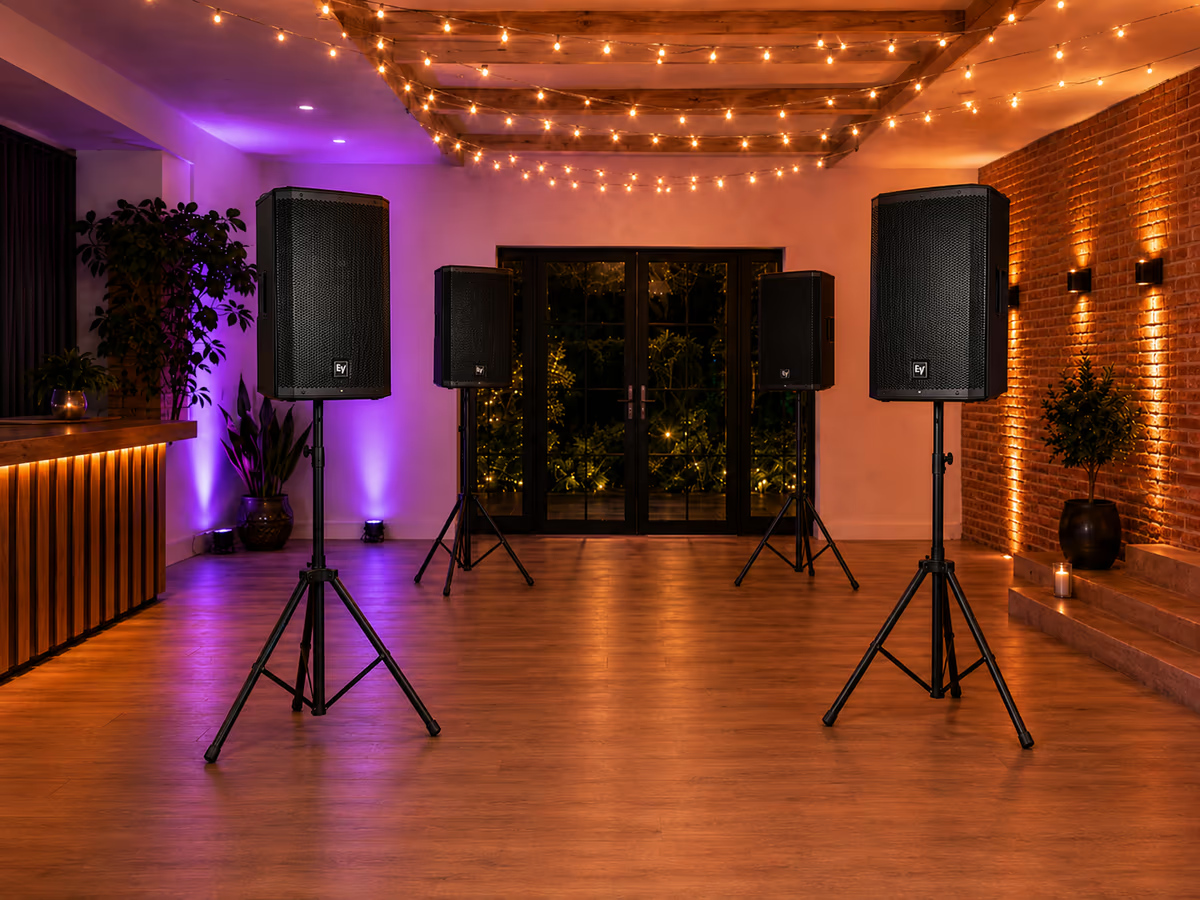
  • Plan four stable speaker positions before opening the cases: front left/right, then rear or side fill positions.
  • Keep the mixer on a dry, stable table where it cannot be knocked or have drinks placed on it.
  • Run speaker and power cables around edges of the room where possible; never stretch them across a busy route.
  • Keep microphones and their users in front of the speakers to prevent feedback.

Setup steps

Work through the setup in this order.

Step 1

Set up and position all four stands

  1. Place each tripod on level ground, fully spread its legs, then tighten the leg knob.
  2. Use the two front speakers to cover the main dance floor or audience area.
  3. Place the rear pair further back or to the sides, aimed into areas the front pair will not reach.
  4. Keep the rear speakers at a lower level than the front pair so they support the room instead of sounding like an echo.
  5. Do not place any stand by a door, drink table, or route guests will use.

Step 2

Mount the speakers and connect power

Use two people to lift speakers where possible. Keep every speaker switched off while you cable the system.

  1. Remove each speaker from its cover and lower it fully onto a stand pole.
  2. Tighten the speaker's bottom locking knob and point its grille towards the listening area.
  3. Connect an IEC power cable to every speaker and run it safely to mains power.
  4. Connect the FLOW 8 power supply and place the mixer within reach of the music device.
  5. Leave all speaker levels low and all four speakers switched off for now.

Step 3

Cable the mixer to all four speakers

Connect the mixer to the first speaker, then daisy-chain the signal through the remaining three speakers for a straightforward setup.

  1. Connect an XLR cable from the FLOW 8 MAIN OUT L socket to Input 1 on the first speaker.
  2. Connect a second XLR cable from FLOW 8 MAIN OUT R to Input 2 on the first speaker.
  3. Connect an XLR cable from the first speaker's MIX OUT to Input 1 on the second speaker.
  4. Connect an XLR cable from the second speaker's MIX OUT to Input 1 on the third speaker.
  5. Connect an XLR cable from the third speaker's MIX OUT to Input 1 on the fourth speaker.
  6. Check every XLR plug is pushed in until it clicks, following the chain from mixer to final speaker.

Step 4

Pair your phone, tablet, or laptop to the FLOW 8

  1. Turn on the FLOW 8 mixer and the speakers.
  2. Press the FLOW 8 Menu button until Bluetooth appears on the display.
  3. Turn the selector knob until the display shows Pair Audio.
  4. Press the selector knob in to start pairing.
  5. Open Bluetooth settings on your phone, tablet, or laptop and select the Behringer FLOW 8 from available devices.
  6. Confirm the connection, then start a test track at low volume.
  7. Keep the device close to the mixer and prevent another guest from pairing to it during the event.

Bluetooth pairs to the mixer—not to an individual speaker—so all four speakers receive the same audio.

Step 5

Set levels and balance the room

  1. Start with the FLOW 8 main level low and every speaker input level low.
  2. Play a familiar track, then slowly raise the FLOW 8 main level until the first speaker is clear.
  3. Bring up the other three speakers gradually; they should fill quieter areas, not overpower the nearest guests.
  4. Walk from front to back and make small level adjustments until music feels even.
  5. If the sound becomes distorted, lower the mixer main level first rather than turning speakers higher.
  6. Keep speakers nearest the listening area a little quieter if needed to reduce echo in long rooms.

Step 6

Test and shut down safely

  1. Check audio comes from all four speakers and that no cable can be tripped over.
  2. Stop music and lower the FLOW 8 main level before guests arrive if you need to pause.
  3. At pack-down, lower the mixer and speaker levels, switch off the rear speakers, then front speakers, then the mixer.
  4. Disconnect power and XLR cables only after everything is off; coil cables loosely and return speakers to their covers.

Useful tips

Keep the setup clear, tidy, and under control.

FLOW 8 Bluetooth checklist
  • Press Menu until Bluetooth appears, select Pair Audio with the selector knob, then press the knob to start pairing.
  • Pair one device only and keep it near the mixer.
  • If the mixer does not appear, restart Pair Audio from the FLOW 8 menu and try again.
  • If music plays but is too quiet, raise the device volume first, then make small adjustments on the mixer.
  • Do not pair directly to a speaker when using the mixer.
Cabling map
  • FLOW 8 MAIN OUT L → speaker 1 Input 1, and FLOW 8 MAIN OUT R → speaker 1 Input 2.
  • Speaker 1 MIX OUT → speaker 2 Input 1 → speaker 2 MIX OUT → speaker 3 Input 1 → speaker 3 MIX OUT → speaker 4 Input 1.
  • Power each speaker separately using its IEC mains cable.
  • Tape or cover any cable that must cross a route, and never run audio or power cables through standing water.
Using a microphone or wired source
  • Connect a microphone or appropriate audio source to a free FLOW 8 input, with its channel level down first.
  • Raise that channel gradually while someone speaks or while music plays.
  • Keep microphones behind the front line of speakers and never point them at a speaker.
  • Turn down the relevant channel if you hear ringing or squealing feedback.

Troubleshooting

Quick checks if something is not working.

A speaker further along the chain has no sound
  • Check the XLR cable from the previous speaker's MIX OUT to that speaker's Input 1.
  • Check that speaker has power, is switched on, and its input level is up.
  • If speakers 1 and 2 work but 3 and 4 do not, start by checking the cable between speakers 2 and 3.
  • Swap the suspected XLR cable with a known working one to identify a loose connection.
No Bluetooth audio
  • Confirm your device says it is connected to FLOW 8, not an EV speaker.
  • Raise device volume, then check the mixer Bluetooth/source channel and main level.
  • Disconnect other Bluetooth devices and repeat pairing close to the mixer.
Sound is echoing or too loud at the back
  • Turn the speakers closest to that area down.
  • Move a speaker closer to the area it needs to cover, rather than turning it up.
  • Keep each speaker facing its local area, not directly back towards another speaker.

Important safety notes

Keep four speaker positions dry, stable, and clear of guests.

  • Keep all equipment dry and away from drinks.
  • Do not overload mains sockets or daisy-chain extension leads.
  • Never move a speaker stand with a speaker mounted.
  • Keep cable runs tidy and protect any crossing a walkway.
  • Do not open, repair, or modify the mixer, speakers, or cables.

Need help?

If you get stuck, contact Rent Loud.