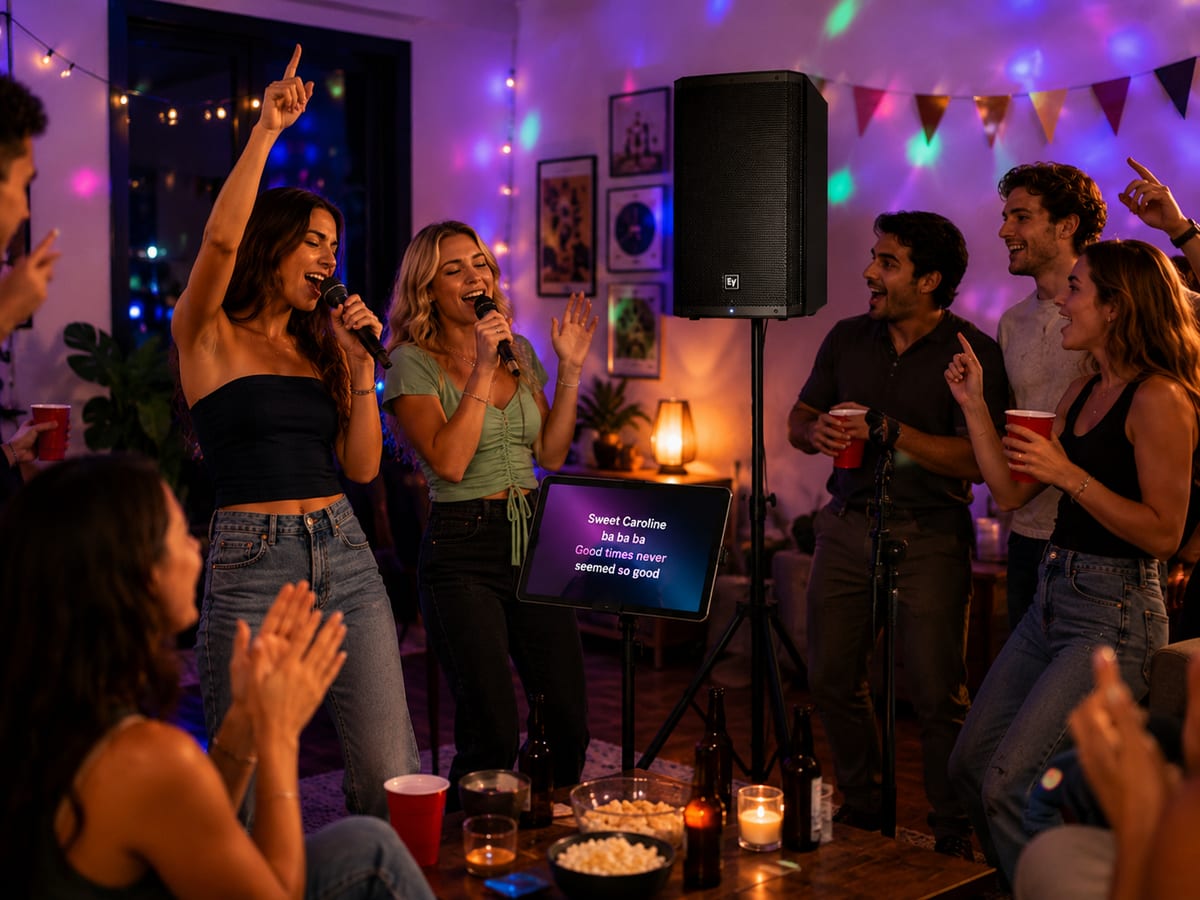
Full package checklist Bluetooth setup Optional TV lyrics Safety and feedback tips
At a glance
Single Karaoke Package
£79/day
Package focus
A big-screen karaoke tablet, two vocal microphones and clear single-speaker sound.
Before you begin
Choose a safe place, then check every item is there.
What's included
1x 10m IEC Cable
2x 10m XLR Cable
1x 3m USB-C Charger
1x EV ZLX-12P G2 12" Speaker
2x G4M Boom Mic Stand
1x Gravity GSP5211B Tripod Speaker Stand
1x Samsung Galaxy S8 Ultra
2x SubZero SZM-11 Beta Dynamic Vocal Microphone
1x Tablet Tripod Stand
Good setup position
Set up at the front or side of the room, facing guests.
Keep the setup away from drinks, doors, and busy walkways.
Choose a position close enough to a plug socket that the speaker power cable is not stretched.
Leave enough space around the speaker stand so it cannot be knocked over.
Avoid placing the speaker directly behind singers, as this can cause microphone feedback.
Setup steps
Set up in order, then test before guests arrive.
Step 1
Set up the speaker stand
Place the Gravity speaker stand on a flat, stable surface.
Loosen the leg adjustment knob.
Spread the tripod legs fully.
Tighten the leg adjustment knob so the stand is stable.
Adjust the height if needed.
Tighten the height adjustment knob securely.
Do not make the stand too high. For most rooms, slightly above head height is enough. Make sure the stand feels solid before putting the speaker on it.
Step 2
Put the speaker on the stand
The speaker is heavy, so use two people if needed.
Remove the speaker from the Electro-Voice speaker cover.
Lift the speaker carefully.
Lower the speaker onto the pole at the top of the stand.
Make sure the speaker is fully seated on the stand.
Turn the speaker so the front grille faces the guests.
Tighten the knob on the bottom of the speaker so it grips securely onto the speaker stand.
Do not move the stand around once the speaker is mounted.
Step 3
Connect power to the speaker
Make sure the speaker is switched off.
Plug the speaker power cable into the back of the speaker.
Plug the other end into a mains socket.
Keep the cable tucked safely out of the way where possible.
Do not switch the speaker on yet.
Step 4
Set up the microphone stands
Your package includes two G4M boom microphone stands.
Place each stand in front of the speaker, not behind it.
Spread the legs so each stand is stable.
Adjust the height to a comfortable singing position.
Adjust each boom arm so the microphone will sit close to the singer.
Tighten all knobs so the stands do not drop or move during use.
Keep both microphone stands in front of the speaker. This helps reduce feedback.
Step 5
Connect the microphones
Plug one end of the first XLR cable into the bottom of microphone 1.
Plug the other end into Input 1 on the back of the speaker.
Place microphone 1 into the first microphone stand clip.
Plug one end of the second XLR cable into the bottom of microphone 2.
Plug the other end into Input 2 on the back of the speaker.
Place microphone 2 into the second microphone stand clip.
Keep the cables tidy and away from where people will walk.
Step 6
Set up the tablet
Open the tablet case or place the tablet on the tablet tripod stand.
Turn on the Samsung Galaxy S8 Ultra.
Unlock the tablet using PIN: 9999.
Connect the tablet to Wi-Fi.
Open the Singa app.
Choose a test song so you can check the sound before guests arrive.
The tablet should be fully charged before handover and includes a charger. Keep it plugged in if you can. If Wi-Fi is not available, the tablet has mobile data, but Wi-Fi is recommended.
Step 7
Connect the tablet by Bluetooth
The tablet should already be paired with the EV speaker before your booking.
Turn the speaker on using the power switch on the back.
On the tablet, open Bluetooth settings.
Select the EV ZLX speaker from the list of available Bluetooth devices.
Once connected, open the Singa app.
Play a test song.
Check that the backing track comes through the speaker.
If it does not connect, make sure Bluetooth is on, move the tablet closer, check that no other device is connected, then restart Bluetooth or the speaker and try again.
Step 8
Optional: connect the tablet to a TV
Place the TV where singers and guests can see it clearly.
Plug the USB-C end of the cable into the Samsung tablet.
Plug the HDMI end into the TV.
Turn on the TV.
Select the correct HDMI input.
Check that the tablet screen appears on the TV.
Open Singa and start a test song.
The TV is for showing lyrics. The main sound should still come from the EV speaker.
Step 9
Turn the system on in the right order
Turn the tablet volume down.
Turn the speaker on.
Start playing a Singa karaoke track quietly.
Slowly raise the tablet volume.
Slowly raise the speaker volume.
Test each microphone one at a time.
Adjust the microphone input volumes if needed.
When turning everything off, turn down the speaker volume, stop the music, turn off the speaker, then unplug cables only after the speaker is off.
Step 10
Adjust microphone levels
The speaker will be preconfigured for karaoke, so you should not need to change the speaker mode or deeper settings.
Ask someone to speak or sing into microphone 1.
Slowly turn up the Input 1 level until microphone 1 is loud enough.
Ask someone to speak or sing into microphone 2.
Slowly turn up the Input 2 level until microphone 2 is loud enough.
Keep both microphones clear but not too loud.
Input 1 controls microphone 1 and Input 2 controls microphone 2. If you hear loud squealing or ringing, turn the microphone level down straight away.
Step 11
Balance music and speaker volume
Use the tablet volume buttons to make the Singa backing track louder or quieter.
Use the main speaker volume control on the back of the EV speaker to make the whole system louder or quieter.
If the music is loud enough but singers are too quiet, turn up Input 1 or Input 2 slightly.
If singers are loud enough but the music is too quiet, turn up the tablet volume slightly.
If everything is too loud, turn down the main speaker volume.
Make small changes and test after each adjustment.
Step 12
Test with a full karaoke track
Play a karaoke song in Singa.
Check that lyrics are visible on the tablet or TV.
Check that the backing track comes through the speaker.
Test both microphones.
Walk around the room and check the volume.
Make sure cables are not creating trip hazards.
The music should be loud enough for the room, but not so loud that voices become unclear.
If Bluetooth needs pairing
Pair the tablet with the EV speaker.
The tablet should already be paired before your booking. If it has become unpaired, use these steps.
Turn the EV speaker on.
On the back of the speaker, tap the Bluetooth button once until it lights up.
Press and hold the Bluetooth button for around 5 seconds.
Unlock the Samsung tablet using PIN: 9999.
Open Settings, then Connections, then Bluetooth.
Make sure Bluetooth is turned on.
Tap the EV ZLX speaker in the available devices list.
Once connected, open Singa and play a test song.
If the speaker does not appear, turn Bluetooth off and on again on the tablet, move the tablet closer, and try speaker pairing mode again.
Extra use
Use music apps, your own phone, and the TV output.
Playing your own music from the tablet
Make sure the tablet is connected to the EV speaker by Bluetooth.
Open Spotify, YouTube Music, Apple Music, YouTube.
Log in with your own account if needed.
Choose your music.
Use the tablet volume and speaker volume to adjust the level.
Please remember to log out of your account before returning the tablet.
Pairing your own phone to the speaker
Only one device can usually be connected to the speaker by Bluetooth at a time, so disconnect the tablet first if needed.
On the Samsung tablet, open Settings, Connections, Bluetooth, tap the EV ZLX speaker, then tap Disconnect.
Turn the EV speaker on.
Tap the Bluetooth button once until it lights up, then press and hold it for around 5 seconds.
On your phone, open Bluetooth settings and tap the EV ZLX speaker.
Play music from your phone and check that it comes through the speaker.
When you want to go back to karaoke, disconnect your phone and reconnect the Samsung tablet.
How to avoid feedback
Keep microphones in front of the speaker, not behind it.
Do not point microphones at the speaker.
Keep singers a few steps away from the speaker.
Turn microphone levels down if feedback starts.
Move the speaker further away from the microphones if needed.
Avoid placing the speaker in a corner if the sound becomes too loud or boomy.
Cable safety
Run cables along walls where possible.
Avoid running cables across walkways.
Use tape or cable covers if cables must cross a walking route.
Keep cables away from drinks.
Do not pull cables tight.
Do not let guests move the speaker stand.
During the event
Keep the tablet charged.
Keep drinks away from all equipment.
Do not let guests adjust cables at the back of the speaker unless needed.
Lower the volume if the speaker sounds distorted.
Keep microphones on their stands when not in use.
Keep the speaker facing the room, not the wall.
Packing down
Stop the music on the tablet.
Turn down the speaker volume, then turn off the speaker.
Unplug the speaker from the mains.
Disconnect and neatly coil the microphone cables.
Remove the microphones from the stands.
Fold down the microphone stands.
Remove the speaker from the stand carefully and put it back in its cover.
Fold down the speaker stand and pack it into the Gravity carry bag.
Pack the tablet, charger, microphones, XLR cables, microphone stands, tablet tripod stand, and any other accessories together.
Troubleshooting
Quick checks if something is not working.
No sound from the music
Check the speaker is switched on.
Check the tablet volume and speaker volume are turned up.
Check the tablet is connected to the speaker by Bluetooth.
Check the Singa track is actually playing.
Check the speaker is not already connected to another phone or tablet.
Microphones are not working
Check each XLR cable is fully clicked into the microphone.
Check the other end of each cable is connected to the speaker.
Check microphone 1 is connected to Input 1 and microphone 2 is connected to Input 2.
Check Input 1, Input 2, and the main speaker volume are turned up.
Speak or sing close enough to the microphone.
The sound is distorted
Turn the tablet volume down slightly.
Turn the main speaker volume down slightly.
Turn the microphone input levels down slightly.
Avoid shouting directly into the microphones.
Move the speaker away from corners if the bass sounds too heavy.
There is a loud squealing sound
This is feedback.
Turn the microphone input level down.
Move microphones away from the speaker.
Make sure microphones are not pointing at the speaker.
Move singers in front of the speaker rather than behind it.
The TV is showing nothing
Check the USB-C to HDMI cable is connected properly.
Check the TV is on the correct HDMI input.
Check the tablet screen is awake.
Check both ends of the cable are firmly connected.
Bluetooth is not connecting
Turn Bluetooth off and on again on the tablet.
Move the tablet closer to the speaker.
Disconnect any other device from the speaker.
Put the EV speaker into Bluetooth pairing mode again.
Restart the speaker and try pairing again.
Singa is not loading songs
Check the tablet is connected to Wi-Fi.
If Wi-Fi is not available, use the tablet's mobile data.
Move the tablet to a stronger signal area if needed.
Close and reopen the Singa app.
Important safety notes
Keep the setup dry, stable, and sensible.
Do not use the equipment outdoors in rain.
Keep all equipment away from drinks and moisture.
Do not overload plug sockets.
Do not place the speaker stand where it can be knocked over.
Do not let children climb on or pull the speaker stand.